
Make Zest yours.
Install it like an app, or make it what your address bar searches with. Everything here is optional.
Install as an app
Zest opens in its own window, works from your Home Screen, and loads faster the next time.
Use Zest as your default search
Your browser sends what you type in the address bar to the engine you choose. This is the URL to give it:
https://zest.taymaerz.de/search?q=%sZest also supplies address-bar suggestions, so completions work once it's your default.
Firefox
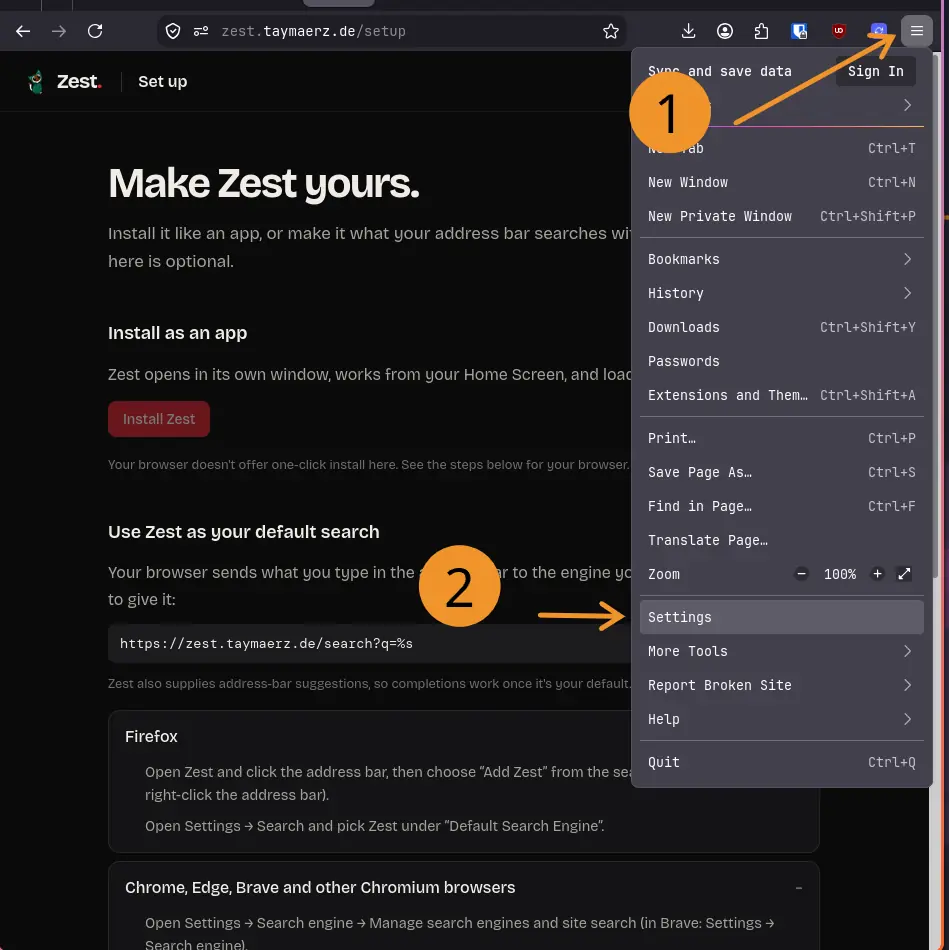
Open the menu (☰, top right) and choose Settings.
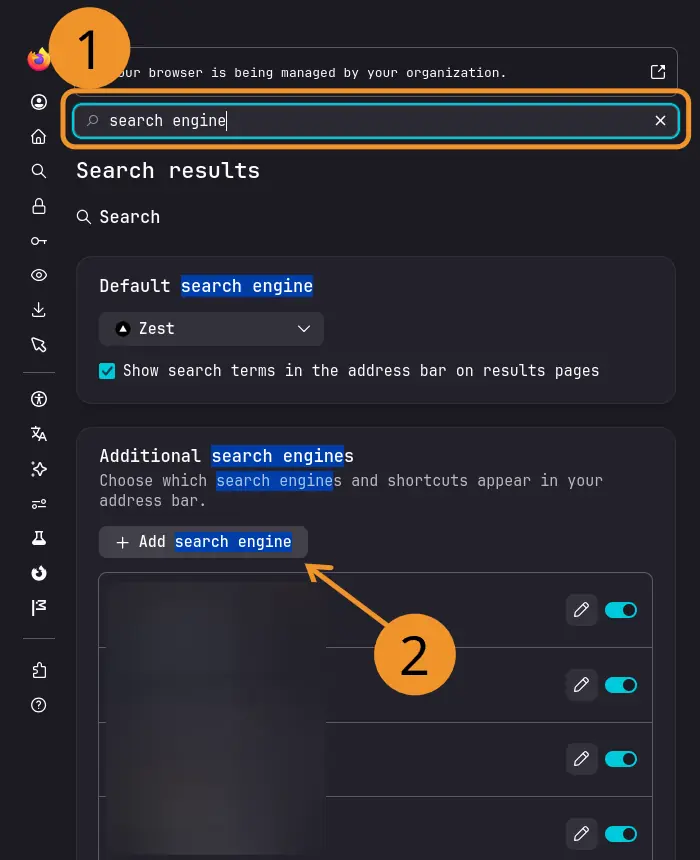
Type “search engine” into the settings search box, then click Add search engine.
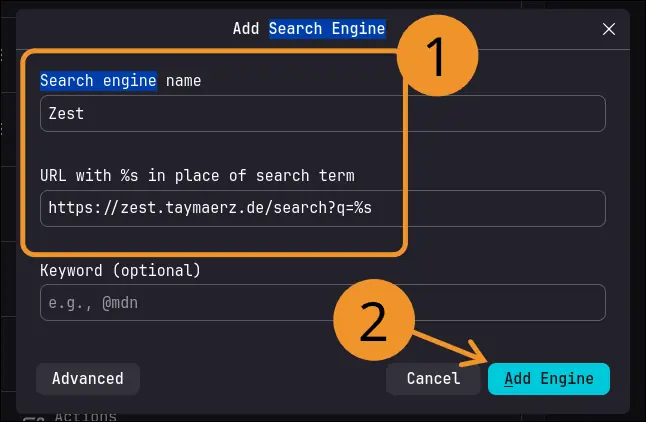
Name it Zest, paste the address from above, and click Add Engine.
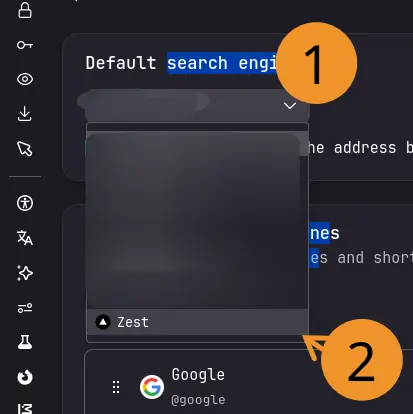
Under Default search engine, choose Zest.
Done. Type something in the address bar and it searches with Zest.

Chrome, Edge, Brave and other Chromium browsers
The screenshots are from Chromium. Chrome, Edge and Brave look very similar. In Edge, look under Privacy, search, and services → Address bar and search.
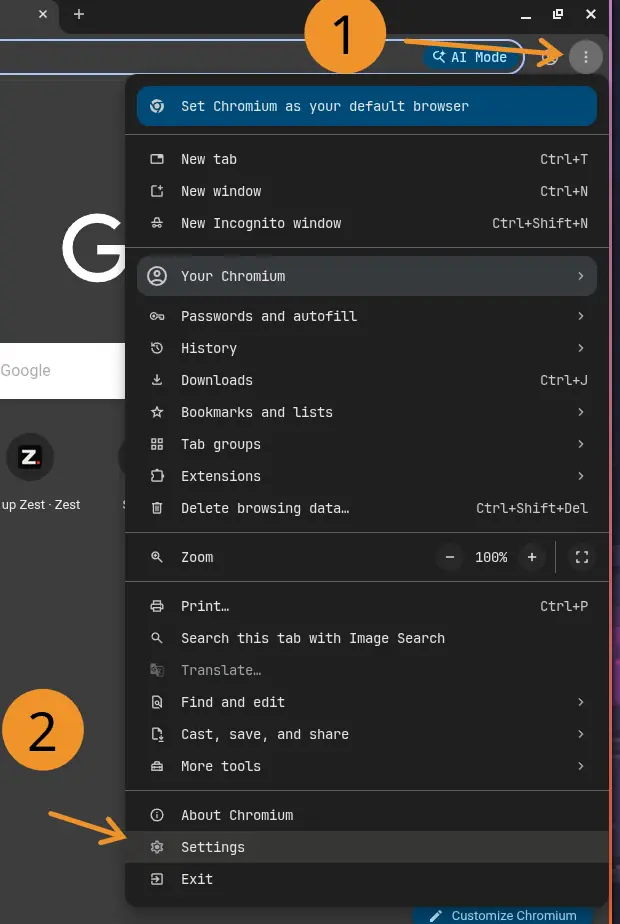
Open the menu (⋮, top right) and choose Settings.
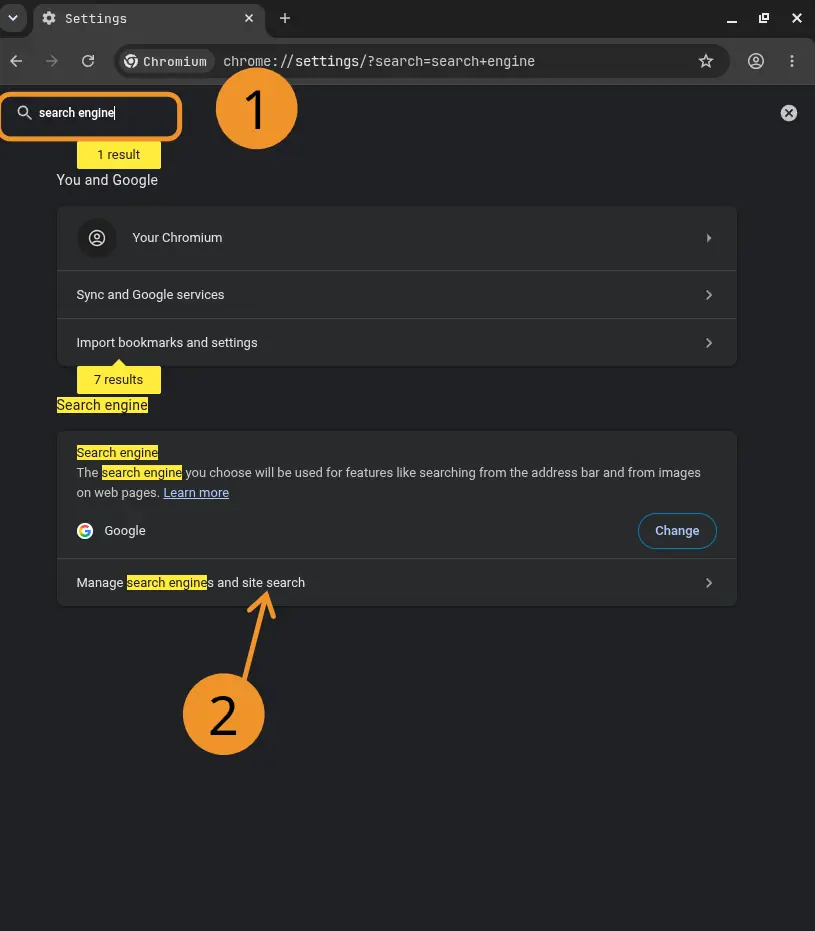
Type “search engine” into the settings search box, then open Manage search engines and site search.
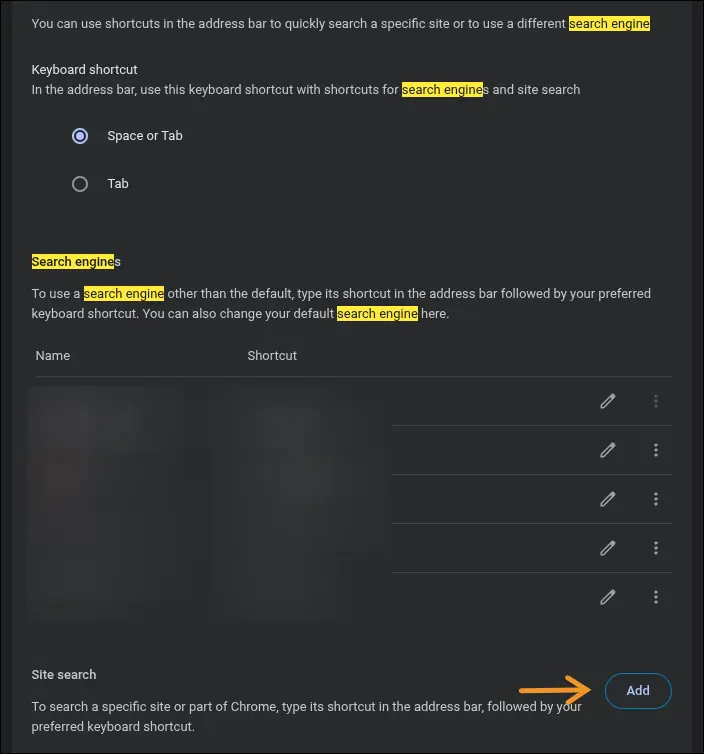
Under Site search, click Add.
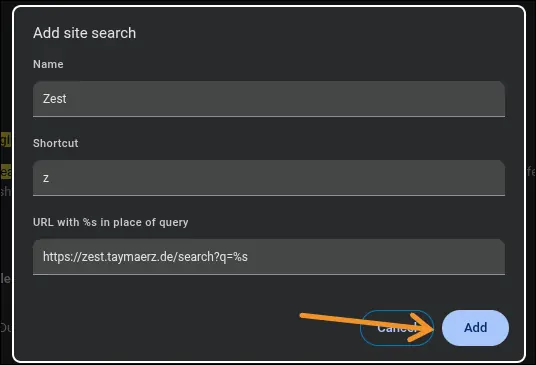
Name: Zest. Shortcut: z. URL: paste the address from above. Then click Add.
Under Additional sites, open the ⋮ menu next to Zest and choose Make default.
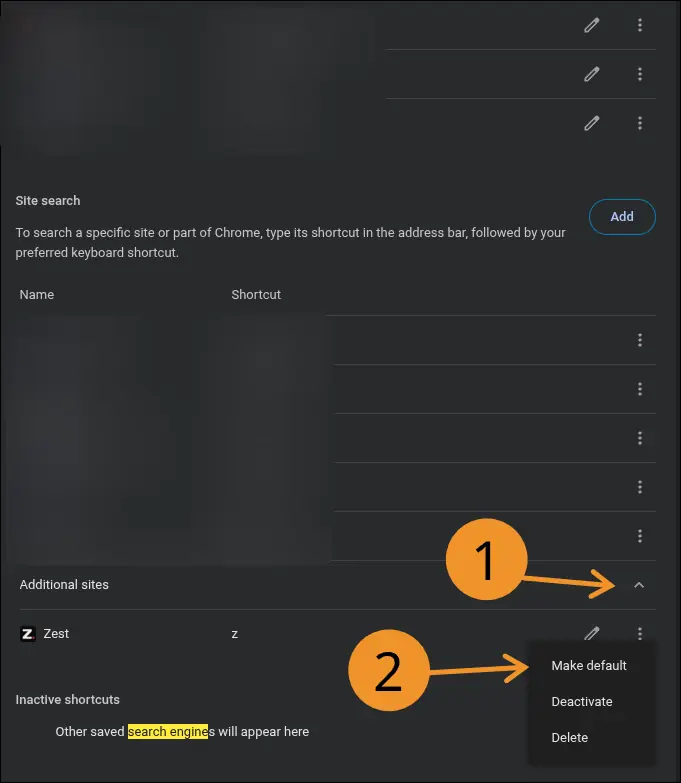
Done. Type something in the address bar and it searches with Zest.

Safari (Mac and iPhone)
Safari doesn't allow custom search engines. Set Zest as your homepage and new-tab page, or save it to your Home Screen with Share → Add to Home Screen.
Apple restricts this; there is nothing Zest can do from its side.
Android
Firefox for Android: long-press the address bar, tap Add search engine, and use the address above.
Chrome for Android: use the Install button above, or add Zest to your Home Screen from the ⋮ menu.
Shortcuts worth knowing
- Type
!w,!ghor!ytbefore a search to jump straight to Wikipedia, GitHub or YouTube. - Start a search with
\to open the first result directly. - Press / to focus the search box and ? for every shortcut.